Transferring Products to a New Phone (Backup and Restore)
If you need to format your phone or switch to a new device, you can move all products registered in Expiry Traker without losing your history.
Below, we explain in detail how data migration between devices works, subscription requirements, and the step-by-step process to export and import manual backups.
The Export and Import backup file features are available exclusively to users with an active PRO subscription in the individual application.
- Automatic Synchronization: Starting from version 2.0 of Expiry Traker, PRO subscribers have automatic cloud synchronization. When switching phones, simply install the application on the new device and log in with the same account (email and password) to automatically restore your data.
- Manual File Backup: The manual file export and import described in this guide was the primary method in earlier versions. Currently, it functions as an additional backup copy (physical backup) highly recommended to ensure you always have a file of your products saved in a secure location (such as Google Drive or OneDrive).
The manual backup file export/import feature is not available and not necessary in Expiry Traker for Teams. As a collaborative system, all team data resides 100% in the cloud in real time. To access your data on a new phone in Expiry Traker for Teams, simply log in with your account.
📤 Step-by-Step: Exporting Backup on the Old Phone
Before formatting or replacing your old device, generate the backup file containing your products:
-
Open the app on your old phone (make sure your PRO subscription is active).
-
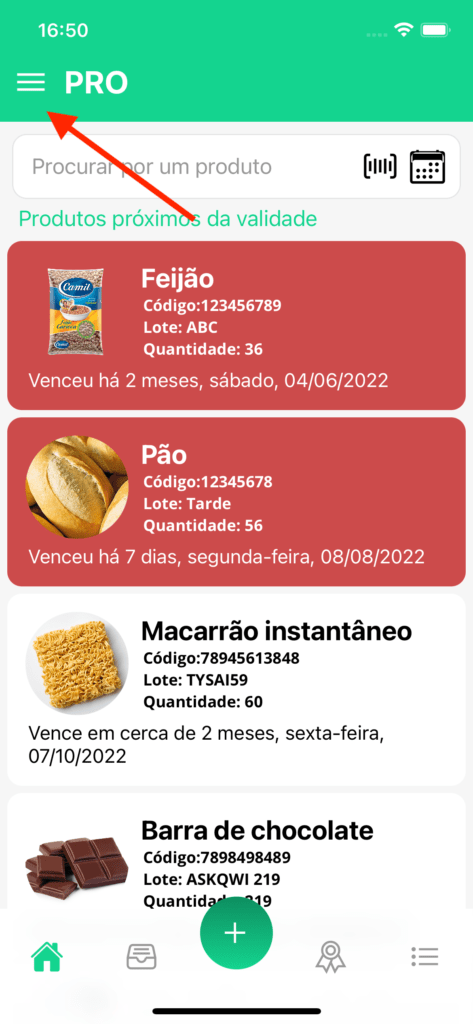
On the home screen, tap the menu icon (hamburger) in the top corner to open the options drawer.
-
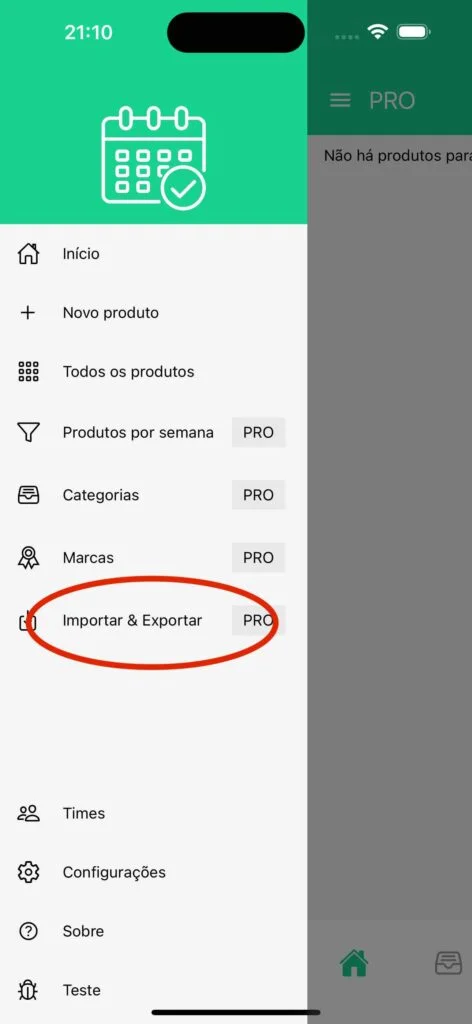
In the side menu, select "Import & Export" (or "Export").
-
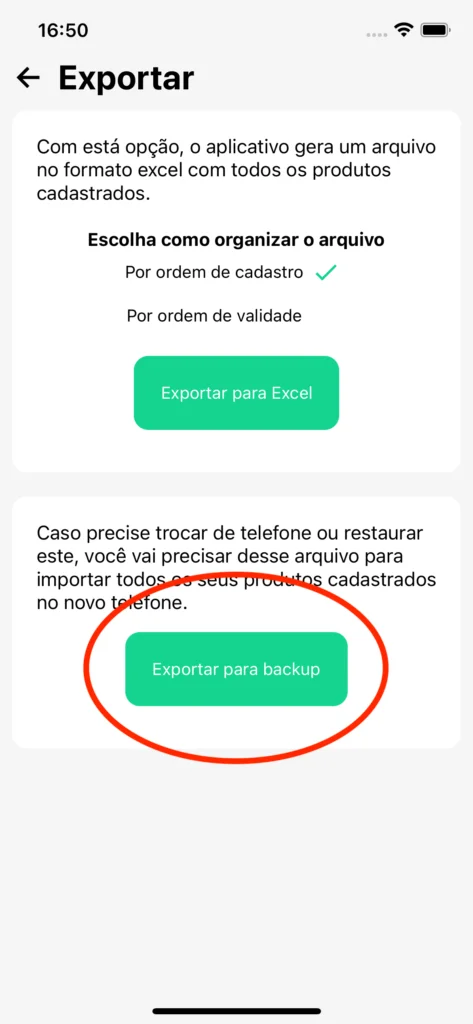
On the export screen, tap the "Export for backup" button.
-
Your phone's operating system will open the save window. Choose where you want to save the generated file:
- Recommendation: Save to a cloud storage service, such as Google Drive or OneDrive, or send the file to your email/messaging app. Saving to the cloud ensures the file will be accessible when you set up your new phone.
Done! Your products are now saved in the backup file.
📥 Step-by-Step: Importing Backup on the New Phone
With the file saved in the cloud or transferred to the new device, follow the steps below to restore your data:
-
Install and open Expiry Traker on the new phone and log in with your PRO account.
-
On the home screen, tap the menu icon and select "Import & Export".
-
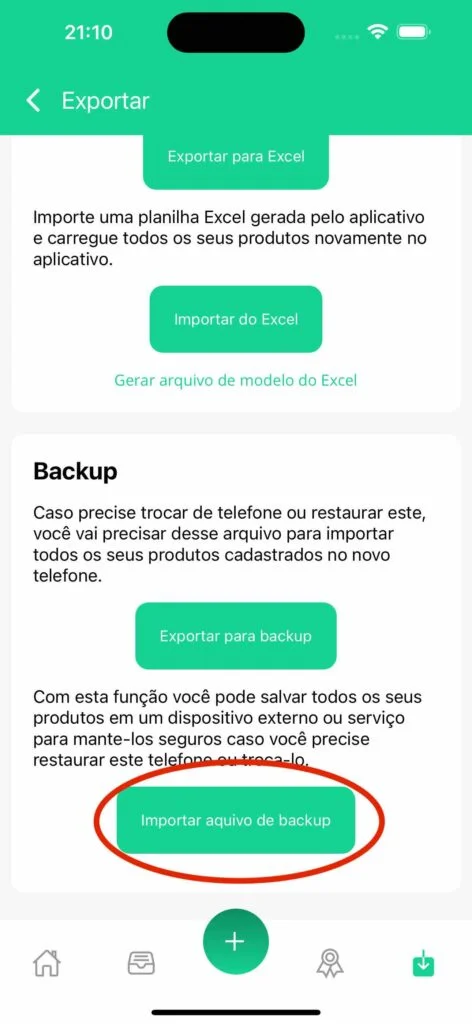
On the screen that opens, tap "Import backup file".
-
Your phone's file picker will appear. Navigate to where you saved the file (in local storage or by selecting cloud services like Google Drive / OneDrive) and select it.
-
Wait a few seconds. The app will process the file reading and all your registered products will be available again on the home screen.