How to Get Your Device Identifier (App ID)
When contacting customer support, it is essential to provide your Device Identifier (or App ID). This information is the only way to identify purchases, records, payments, and diagnose issues related to your app installation.
Below is the step-by-step guide to finding and copying this code in both Expiry Traker (individual app) and Expiry Traker for Teams (collaborative app).
📱 Expiry Traker (Individual App)
If you are using the individual version of the app, follow these steps to copy your identifier:
-
Open the app on your phone.
-
In the main menu or bottom navigation bar, tap "About".
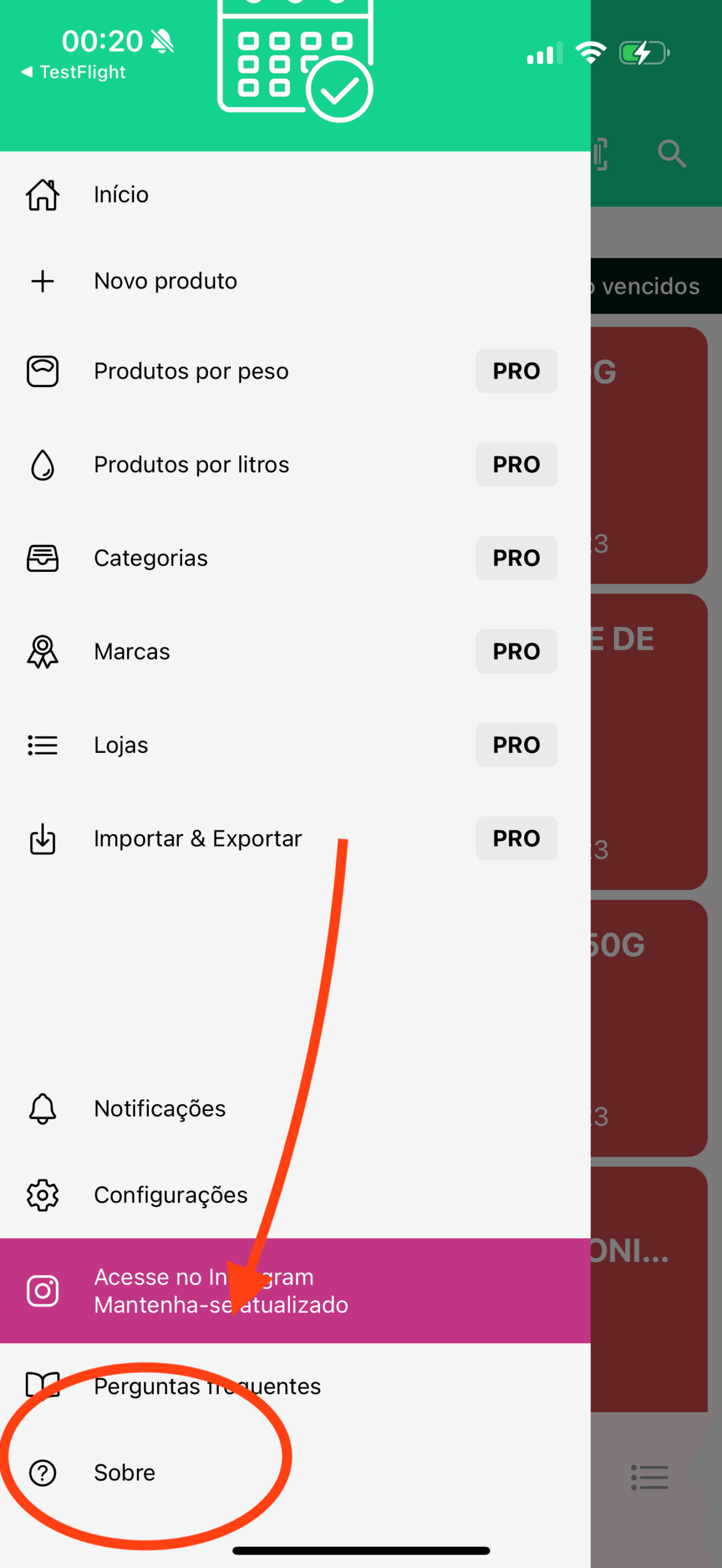
-
On the About screen, locate your Identification Code right below the app version.
-
Tap directly on your identification code.
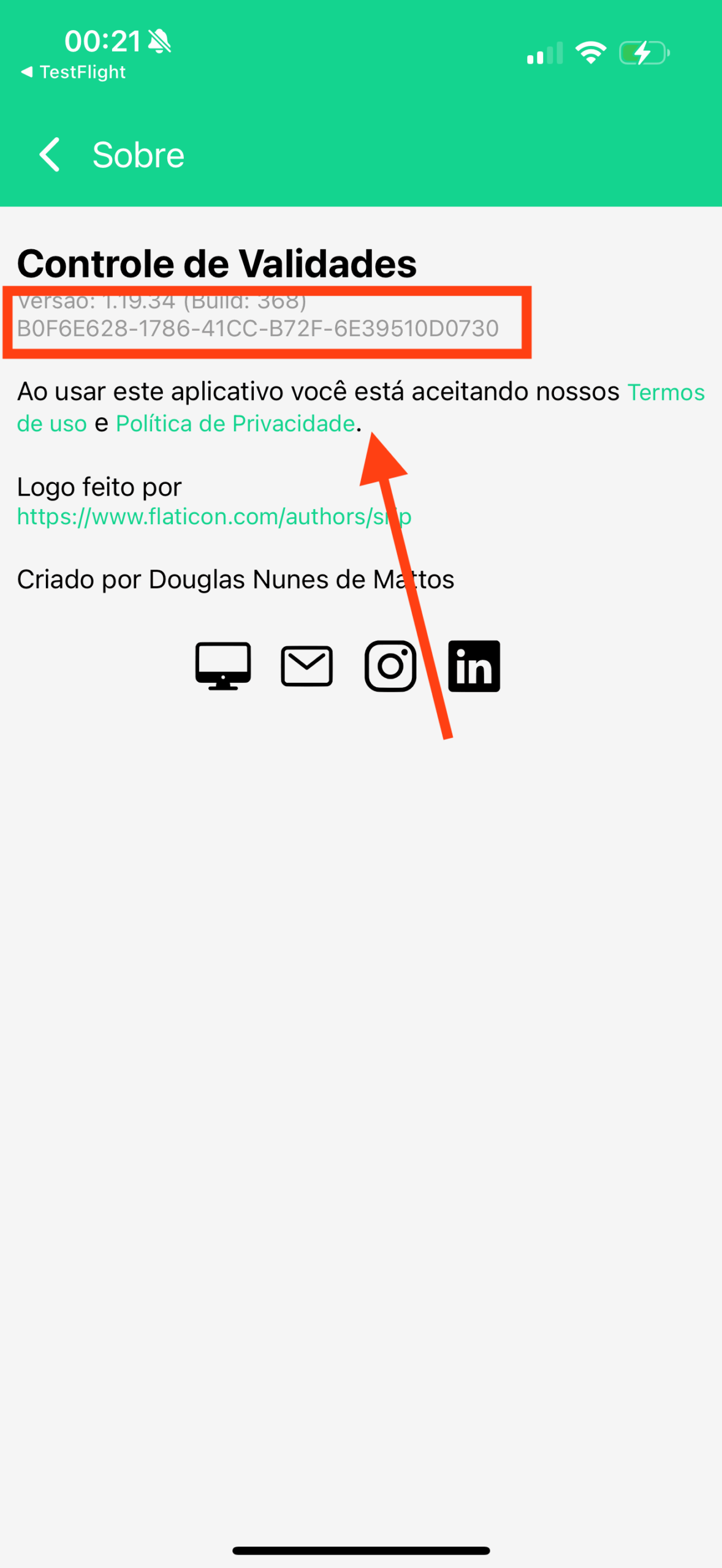
-
A notification will appear confirming that the identifier has been copied to your clipboard.
-
You can now paste (
Ctrl+Vor press and hold in any text field) the identifier into your support message or contact form.
👥 Expiry Traker for Teams (Collaborative App)
In Expiry Traker for Teams, the steps depend on whether you are logged in or on the login screen:
Logged-in Access
- Open the app and navigate to the main menu.
- Tap "About".
- Tap on the identification code to copy it to your clipboard.
Access Without Login (Login Screen)
If you cannot log in or don't have access to the app's main screen:
- Open the Expiry Traker for Teams app.
- On the login screen, tap the help icon (
?) at the top of the screen. - Your device identifier will be displayed and ready to copy.
📋 How to Send It to Support
After copying your code:
-
Paste the identifier in the designated field on the Support Form or in the chat/email thread where you are receiving help.
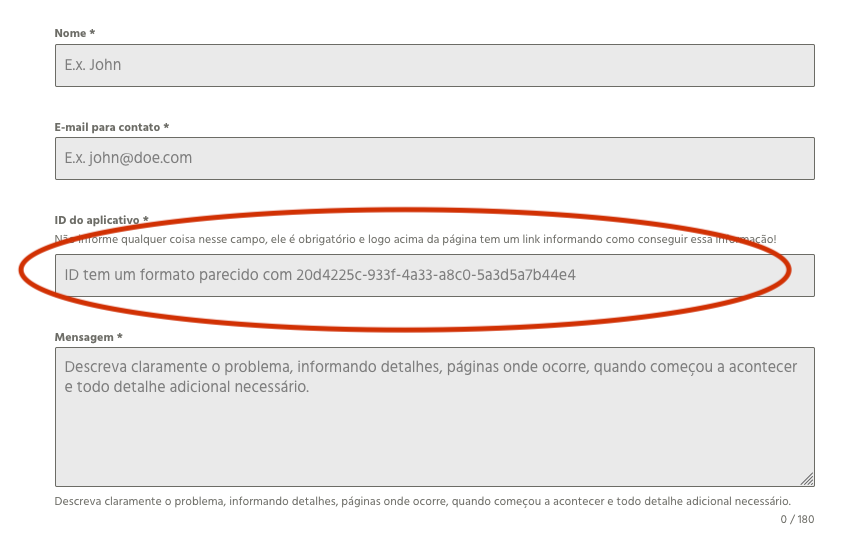
-
Make sure not to modify any characters in the code to ensure exact identification.